Howl Brand Tag
Overview
The Howl Brand Tag is a lightweight javascript tag that enables a direct order feed between Howl and your e-commerce store. Only clients with Howl's Brand Tag can optimize their campaigns by ROAS and see more comprehensive metrics like revenue and RPC. The tag operates through two events: page loads and checkouts.
Please note: Checkout events are in compliance with GDPR and CCPA and do not capture personally identifiable information (PII). Additionally, as the tag runs asynchronously in the background, there is no impact to the page load time.
Checkouts
Checkout events allow Howl to accurately capture revenue and conversions in real time. The data gathered by checkout events also powers an experience creators and publishers rely on to track top sellers and give better product recommendations in their content. Checkout events should be fired on your site's order confirmation page, or the page that loads immediately after they've successfully purchased their items.
Adding the Brand Tag
To enable Howl tracking on your site, follow the instruction set that best fits your site setup:
Google Tag Manager Implementation
Testing the Brand Tag
Completing a Test Checkout
To test checkout events, you will need to do a test order on your site. There are two recommended ways to do this:
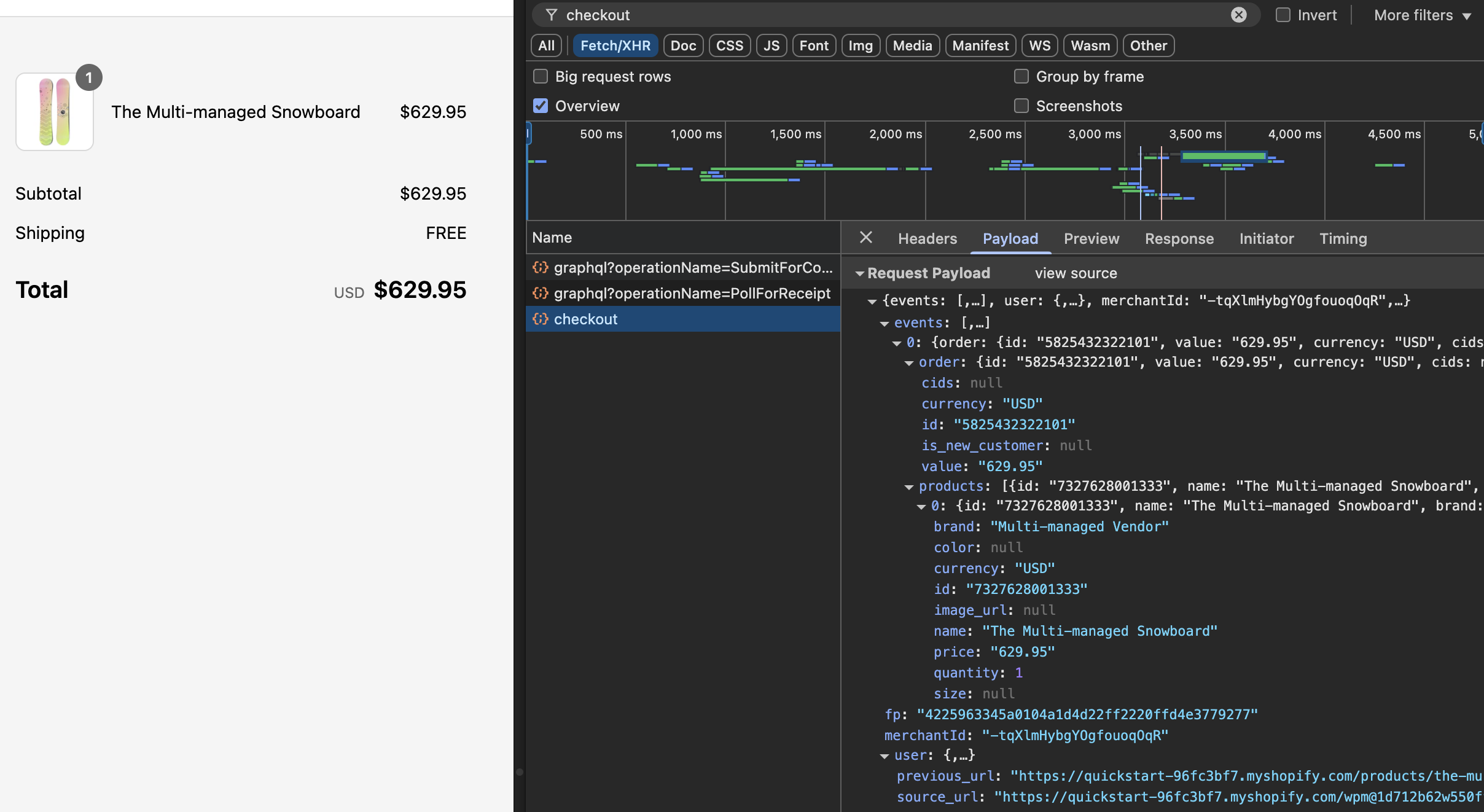
Viewing Network Requests:
- Open the Chrome Developer Tools on your site
- Filter by "checkout" (you can also select the
Fetch/XHRbutton below the filter to find the request easier) - Complete a test checkout
- On the confirmation page, you should see a "checkout"
event fired. You can view the checkout payload by clicking the
Payloadtab
Using Chrome Console:
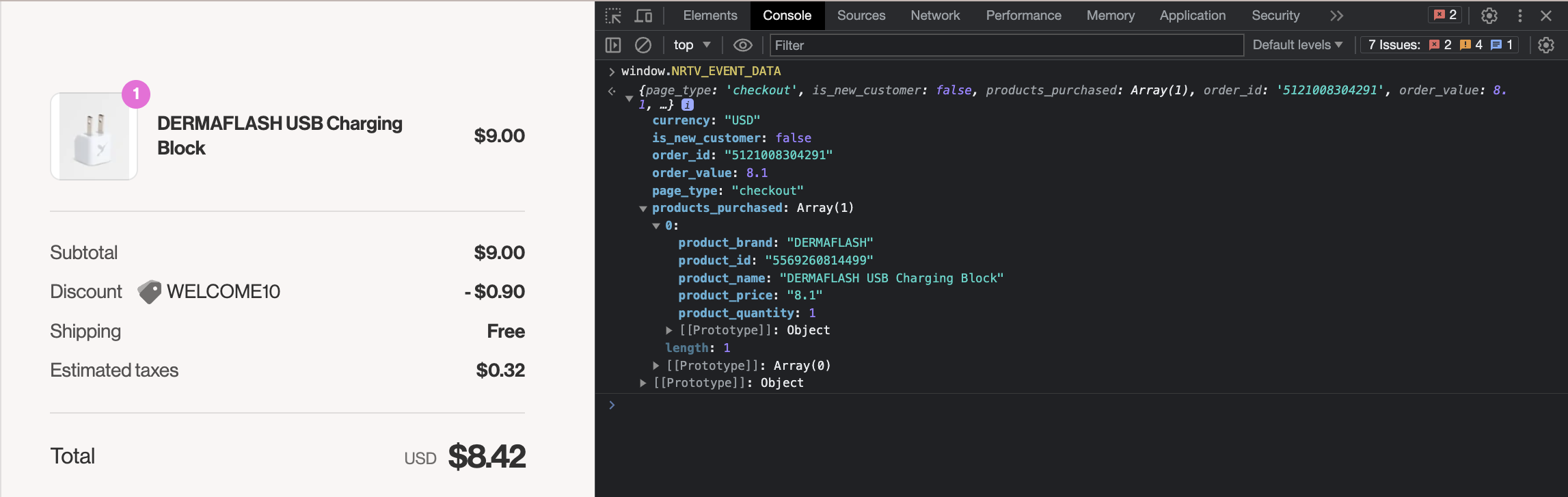
- Complete a test checkout
- On your order confirmation or order status page, open the Chrome Developer Tools on Google Chrome and select the Console tab
- Type
window.NRTV_EVENT_DATAin the console and hit the Enter key on your keyboard - Expand the details
- The list of products should have prices that reflect the discount in the order
Discounts and Discount Codes
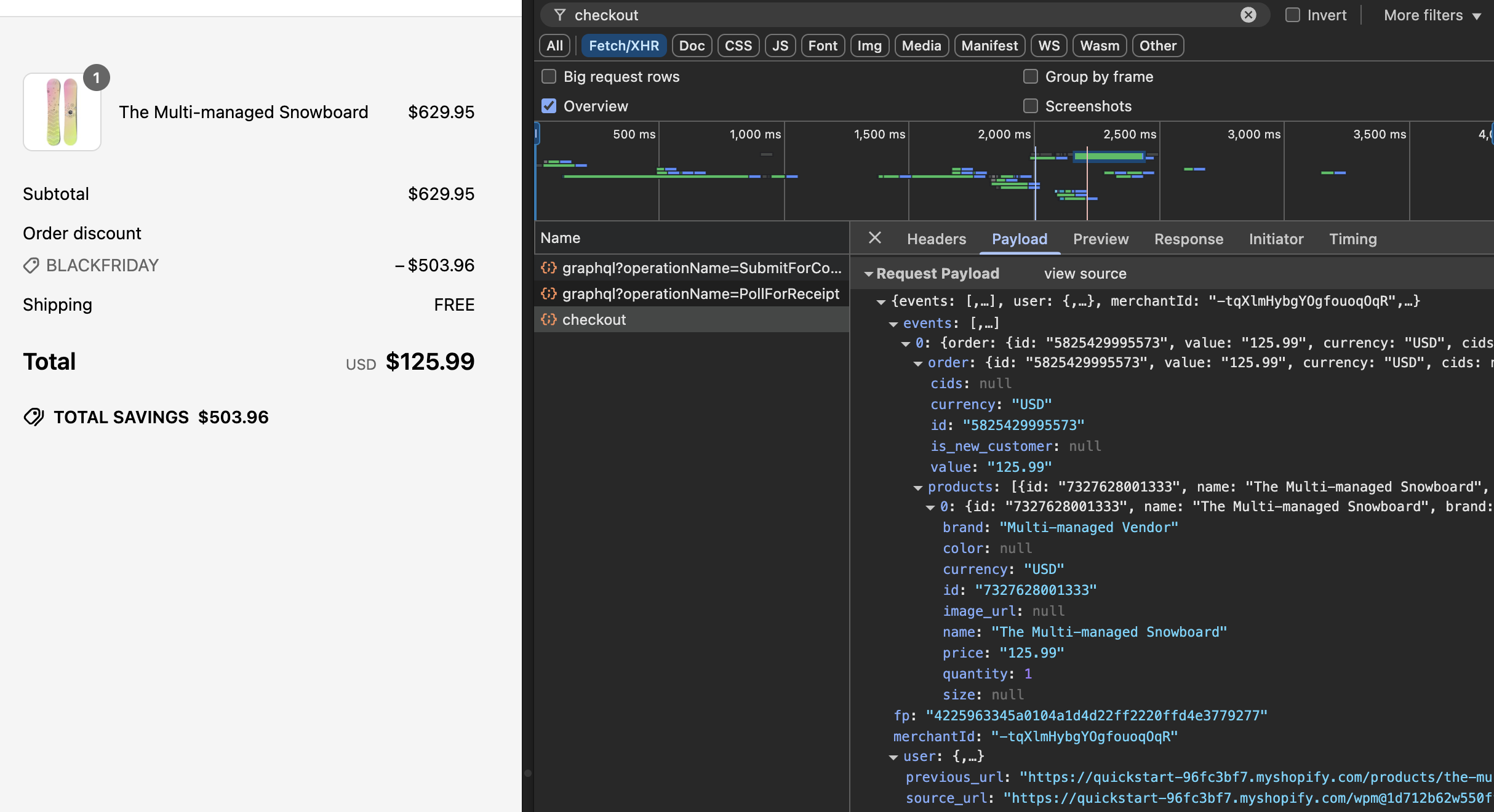
We require the product_price for each item to be inclusive of all discounts.
To ensure the tag captures discounts and discount codes accurately, you must
include logic that checks for the presence of a discount and applies it
proportionally to all products. Discounts cannot be applied solely to
the order value or as a negative value product.
Place an additional test order with a coupon code to ensure the product price variables accurately capture any discounts.
Web Implementation
Checkout Events
Copy and paste the following Javascript snippet in the HEAD section of
all site pages, excluding the checkout path (pages that include PII) and
the order confirmation page.
- Make sure to replace
ACCOUNT IDwith your own Howl account id. - Need your Howl account id? Reach out to your growth manager or [email protected] for assistance.
<script type="text/javascript">
    (function (window, document, accountId) {
            var b = document.createElement("script");
            b.type = "text/javascript";
            b.src = "https://public.howl-media.com/pixel/brand.js";
            b.async = true;
            b.id = 'nrtvTag';
            b.setAttribute('data-narrativ-id', accountId);
            var a = document.getElementsByTagName("script")[0];
            a.parentNode.insertBefore(b, a);
        })(window, document, ACCOUNT ID);
</script>
Next, copy and paste the following code snippet onto your site's order confirmation page, or the page displayed to customers immediately after they've successfully purchased their items. The code should be populated with order and product purchased details pertaining to your data layer.
- Make sure to replace
ACCOUNT IDwith your own Howl account id.
<script type="text/javascript">
    var purchased = <dataLayerProducts>;
    var productsPurchased = [];
    var orderTotal = 0;
    for (var i = 0; i < purchased.length; i++) {
    let finalPrice = parseFloat(purchased[i].<ItemPrice>);

    // Only do this if the product price does not include the discount.
    if (purchased[i].<Discount>) {
        finalPrice -= parseFloat(purchased[i].<Discount>)
    }

    productsPurchased.push({
        product_id: purchased[i].<ItemID>,
        product_name: purchased[i].<ItemName>,
        product_brand: purchased[i].<ItemBrand>,
        product_size: purchased[i].<ItemSize>,
        product_color: purchased[i].<ItemColor>,
        product_price: finalPrice.toString(),
        product_quantity: purchased[i].<ItemQuantity>
    });
    orderTotal += (finalPrice * purchased[i].<ItemQuantity>);
    }

    window.NRTV_EVENT_DATA = {
        page_type: 'checkout',
        is_new_customer: <isNewCustomer>,
        products_purchased: productsPurchased,
        order_id: <OrderID>,
        order_value: orderTotal,
        currency: <CurrencyCode>
    };

    (function (window, document, accountId) {
        var b = document.createElement("script");
        b.type = "text/javascript";
        b.src = "https://public.howl-media.com/pixel/brand.js";
        b.async = true;
        b.id = 'nrtvTag';
        b.setAttribute('data-narrativ-id', accountId);
        var a = document.getElementsByTagName("script")[0];
        a.parentNode.insertBefore(b, a);
      })(window, document, ACCOUNT ID);
</script>
Customize the Checkout Code to Your Site
Populate the code snippet based on below requirements:
| Statement | Requirement | Data Type | Notes |
|---|---|---|---|
var purchased = <dataLayerProducts>; | Replace <dataLayerProducts> with the list of purchased products in your data layer. Each item in this array represents attributes of a single purchased product (explained in the following items). | Object | |
product_id: purchased[i].<ItemID>, | Replace <ItemID> with the variable name your data layer uses to define item ID, or the unique identifier for the purchased product. | String | |
product_name: purchased[i].<ItemName>, | Replace <ItemName> with the variable name your data layer uses to define item name, or the name for the purchased product. | String | |
product_price: purchased[i].<ItemPrice>, | Replace <ItemPrice> with the variable name your data layer uses to define item price. This must be the per-unit price of the purchased product. | String | Both cart level and product level coupon codes should be captured in this variable (e.g. if a coupon code variable in the data layer is not null, apply X% discount to product_price) |
product_quantity: purchased[i].<ItemQuantity>, | Replace <ItemQuantity> with the variable name your data layer uses to define item quantity, or the quantity of the purchased product. | Integer | |
product_brand: purchased[i].<ItemBrand>, | Replace <ItemBrand> with the variable name your data layer used to define item brand, or the brand of the purchased product. | String | If Item Brand is not available, replace <ItemBrand> with null |
product_size: purchased[i].<ItemSize>, | Replace <ItemSize> with the variable name your data layer uses to define item size, or the size of the purchased product. | String | If Item Size is not available, replace <ItemSize> with null |
product_color: purchased[i].<ItemColor>, | Replace <ItemColor> with the variable name your data layer uses to define item color, or the color of the purchased product. | String | If Item Color is not available, replace <ItemColor> with null |
orderTotal += (purchased[i].<ItemPrice> * purchased[i].<ItemQuantity>); | Replace <ItemPrice> and <ItemQuantity> with the same respective values used above. | String | |
is_new_customer: <isNewCustomer>, | Replace <isNewCustomer> with a boolean (true/false) indicating if the order is the customer's first | Boolean | If field is not available, replace <isNewCustomer> with null |
order_id: <OrderID>, | Replace <OrderID> with the order ID, a unique identifier for the order. | String | |
currency: <CurrencyCode>, | Replace <CurrencyCode> with the three digit currency code that order was placed in (ex: 'USD'). Uses ISO 4217 | String |
Shopify Implementation
You may reference the following examples for implementing the tag on your Shopify site, but you may also roll your own implementation as long as it meets the requirements.
Checkout Events
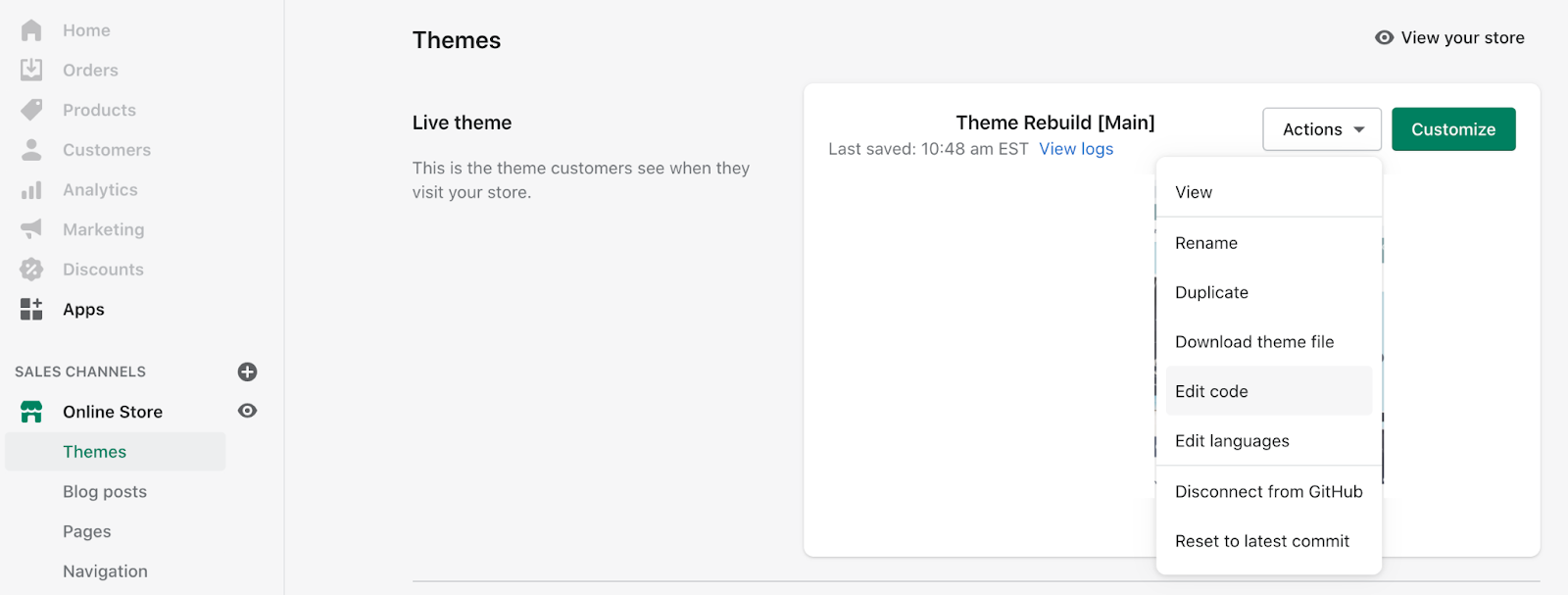
On your Shopify home page, navigate to the Edit code option in the Themes section:
Copy and paste the following Javascript snippet into the <head> tag of
the theme.liquid layout (pictured below the snippet) and save your
changes.
- Make sure to replace
ACCOUNT IDwith your own Howl account id. - Need your Howl account id? Reach out to your growth manager or [email protected] for assistance.
<script type="text/javascript">
    (function (window, document, accountId) {
        var b = document.createElement("script");
        b.type = "text/javascript";
        b.src = "https://public.howl-media.com/pixel/brand.js";
        b.async = true;
        b.id = 'nrtvTag';
        b.setAttribute('data-narrativ-id', accountId);
        var a = document.getElementsByTagName("script")[0];
        a.parentNode.insertBefore(b, a);
    })(window, document, ACCOUNT ID);
</script>
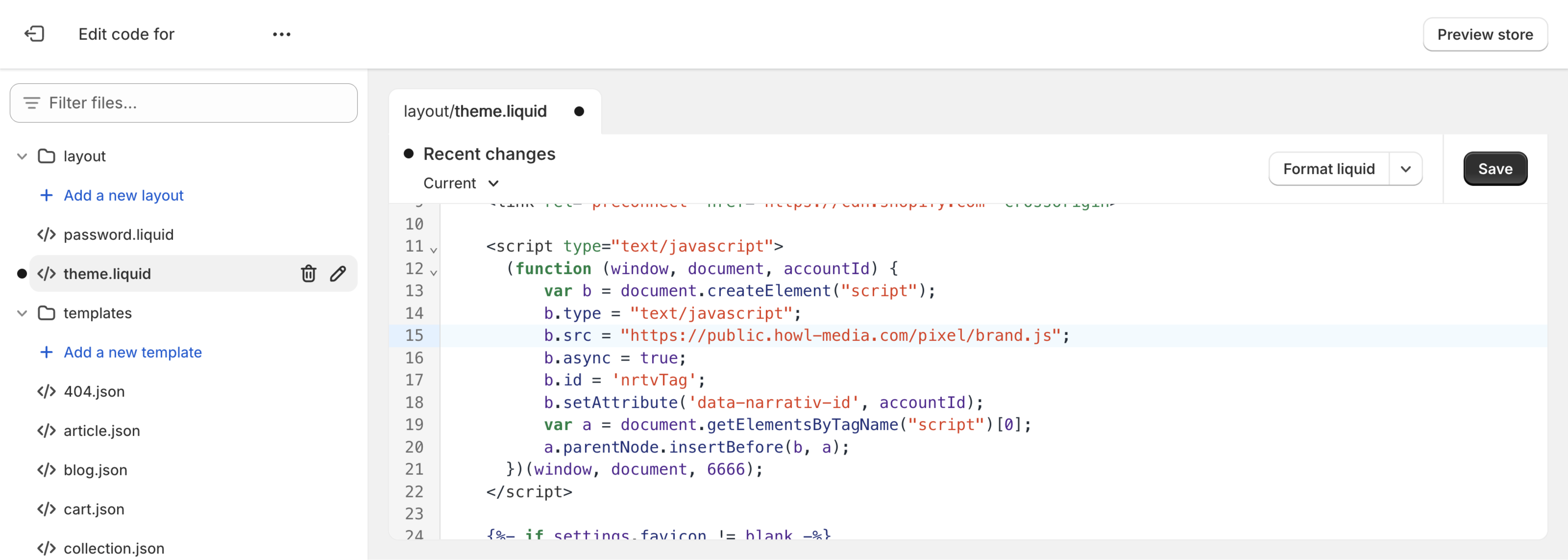
In order to integrate the checkout tag within Shopify, Shopify recommends using pixel apps or custom pixels found in the Customer events settings.
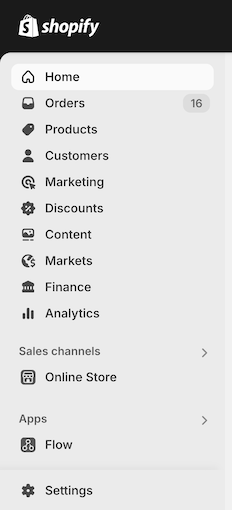
Click the Settings button on the bottom left of the navigation bar on
the Shopify store home page.
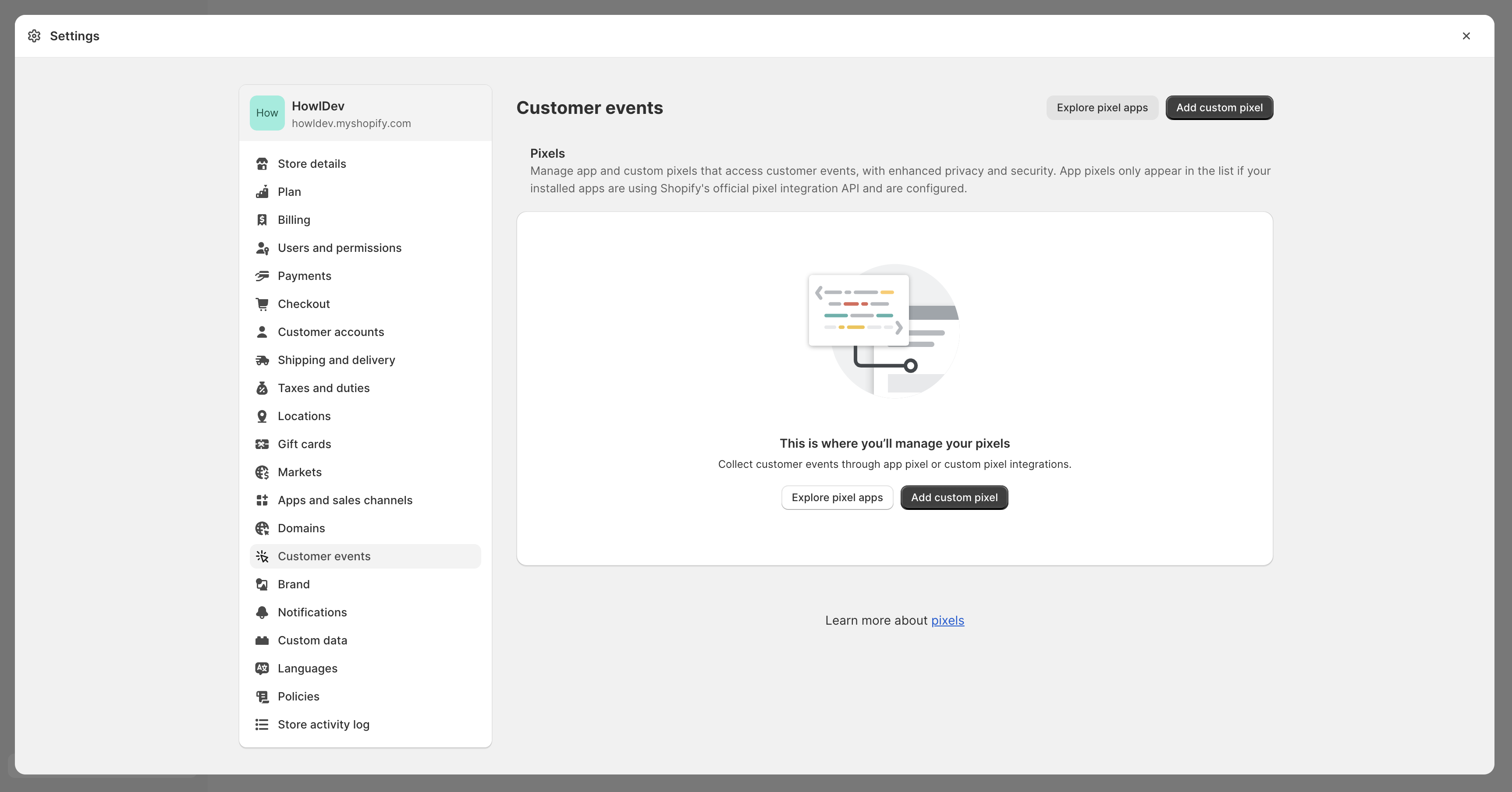
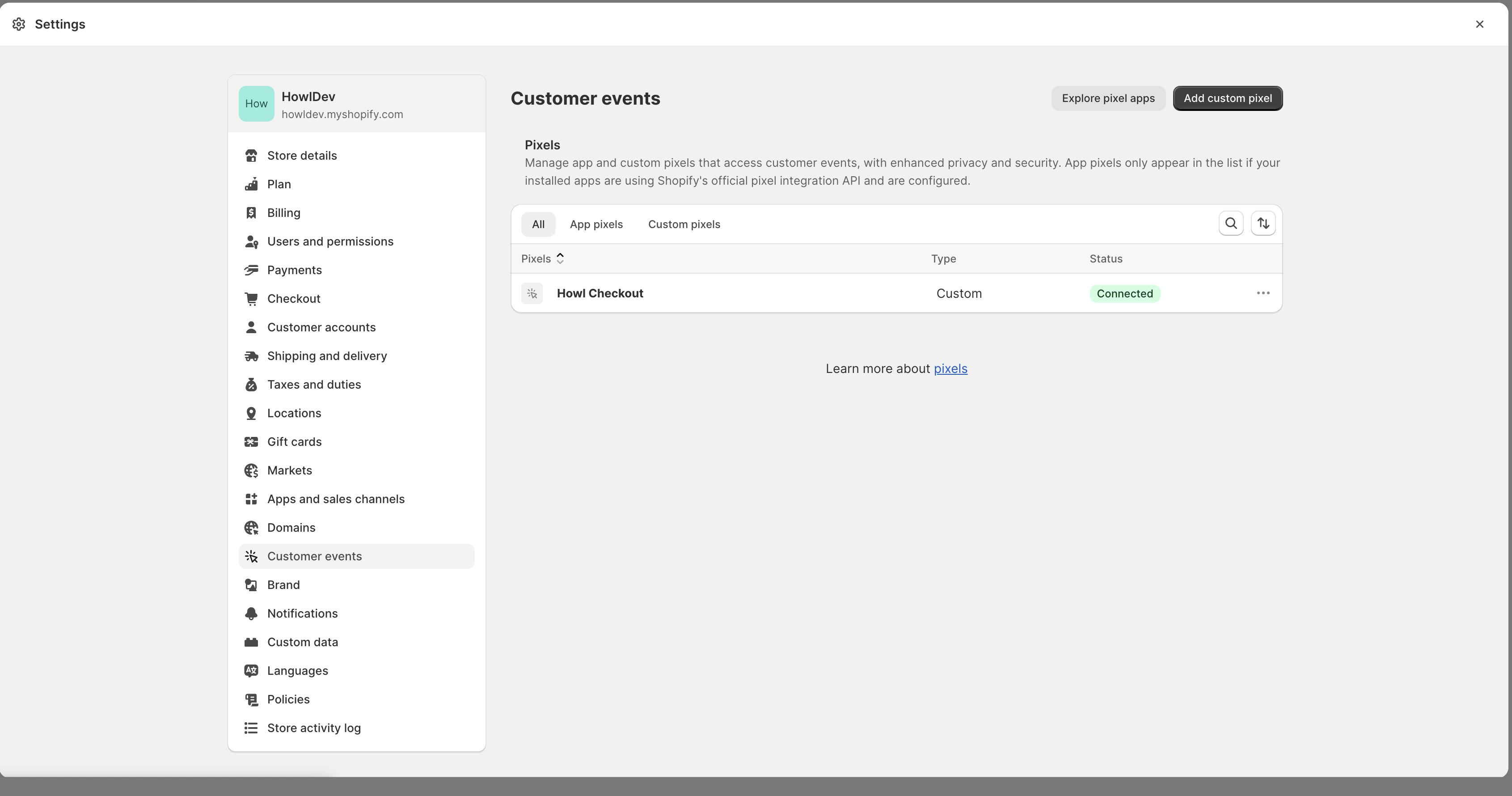
Once the setting modal is visible, click on Customer events and then click Add custom pixel.
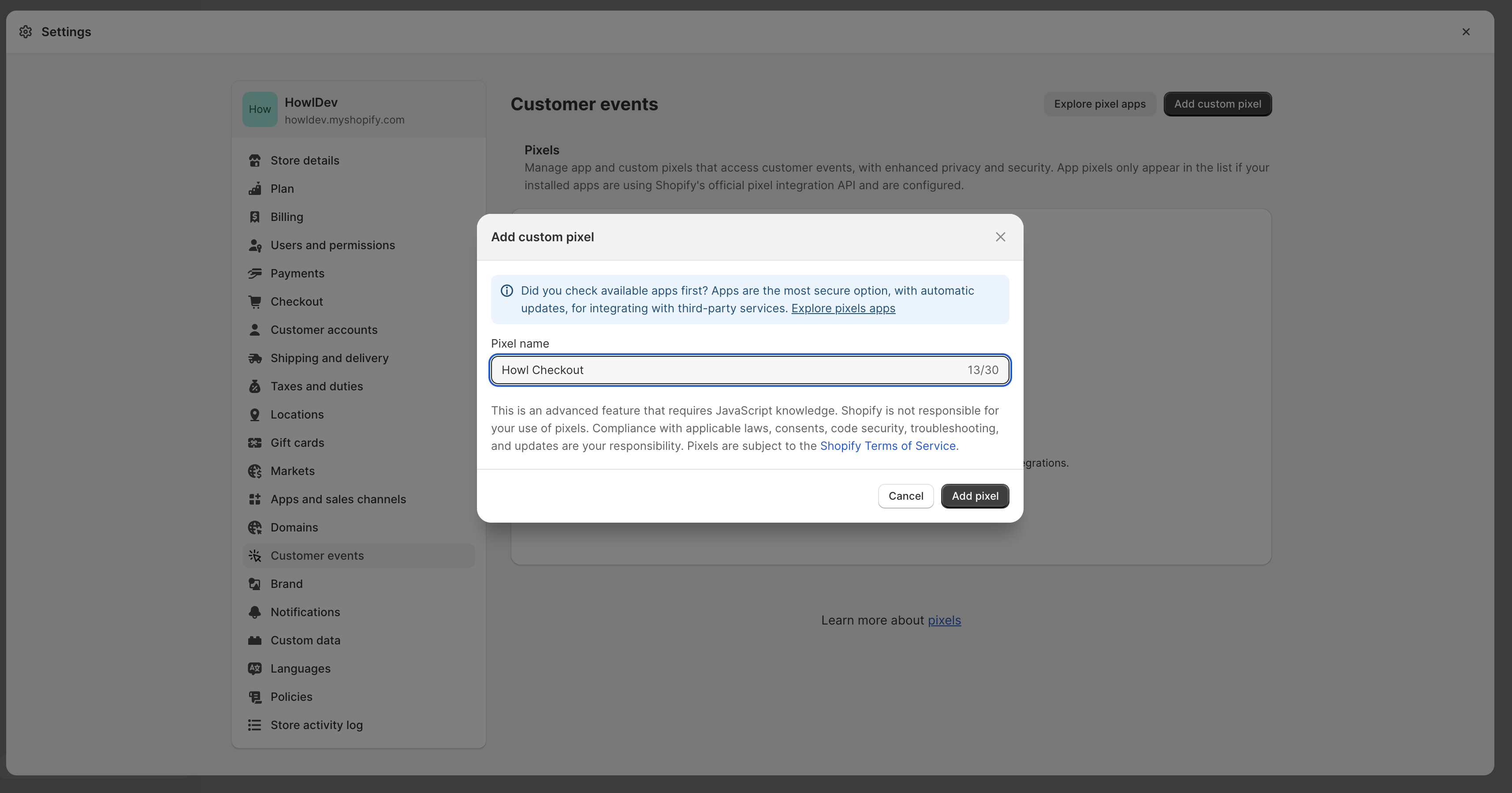
Name the pixel "Howl Checkout" and click Add pixel.
Add the following snippet to the Code section of the custom pixel. Replace ACCOUNT_ID with your Howl account id.
// Step 1. Add and initialize your third-party JavaScript pixel (make sure to exclude HTML)
function checkoutPixel(eventData) {
    var checkoutData = eventData.checkout;
    var purchased = checkoutData.lineItems;
    var productsPurchased = [];
    var orderTotal = 0;

    for (var i = 0; i < purchased.length; i++) {
    var productPrice = purchased[i].variant.price.amount;
    if (purchased[i].discountAllocations.length) {
        for (var j = 0; j < purchased[i].discountAllocations.length; j++) {
        productPrice -= parseFloat(purchased[i].discountAllocations[j].amount.amount);
        }
    }
    productsPurchased.push({
        product_id: purchased[i].variant.product.id,
        product_name: purchased[i].variant.product.title,
        product_brand: purchased[i].variant.product.vendor,
        product_price: parseFloat(productPrice).toFixed(2),
        product_quantity: purchased[i].quantity
    });
    orderTotal += parseFloat(productPrice) * purchased[i].quantity;
    }

    window.NRTV_EVENT_DATA = {
        page_type: 'checkout',
        is_new_customer: checkoutData.order.customer.isFirstOrder,
        products_purchased: productsPurchased,
        order_id: checkoutData.order.id,
        order_value: parseFloat(orderTotal).toFixed(2),
        currency: checkoutData.currencyCode,
    };

    try {
        var b = document.createElement("script");
        b.type = "text/javascript";
        b.src = "https://public.howl-media.com/pixel/brand.js";
        b.async = true;
        b.id = 'nrtvTag';
        b.setAttribute('data-narrativ-id', ACCOUNT_ID);
        var a = document.getElementsByTagName("script")[0];
        a.parentNode.insertBefore(b, a);
    } catch (e) {
        console.log('Howl Checkout Pixel Error: ', e)
    }
}

// Step 2. Subscribe to customer events using the analytics.subscribe() API
analytics.subscribe("checkout_completed", event => {
    checkoutPixel(event.data);
});
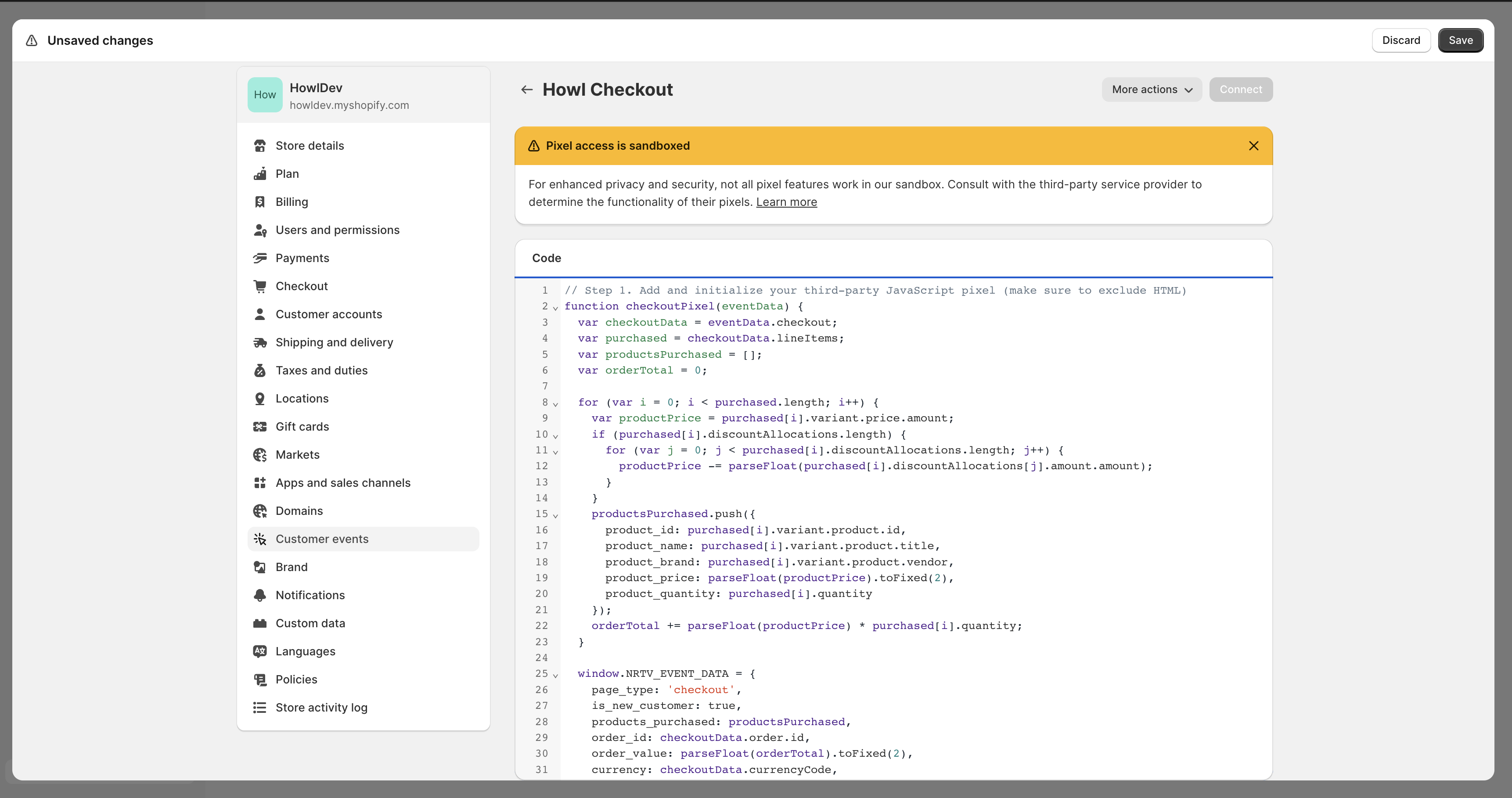
Once the code is added, click Save on the top right, then click Connect. The page should look like this once completed.
Google Tag Manager Implementation
Checkout Events
Create a new tag titled Howl Impression Events with a Custom HTML configuration:
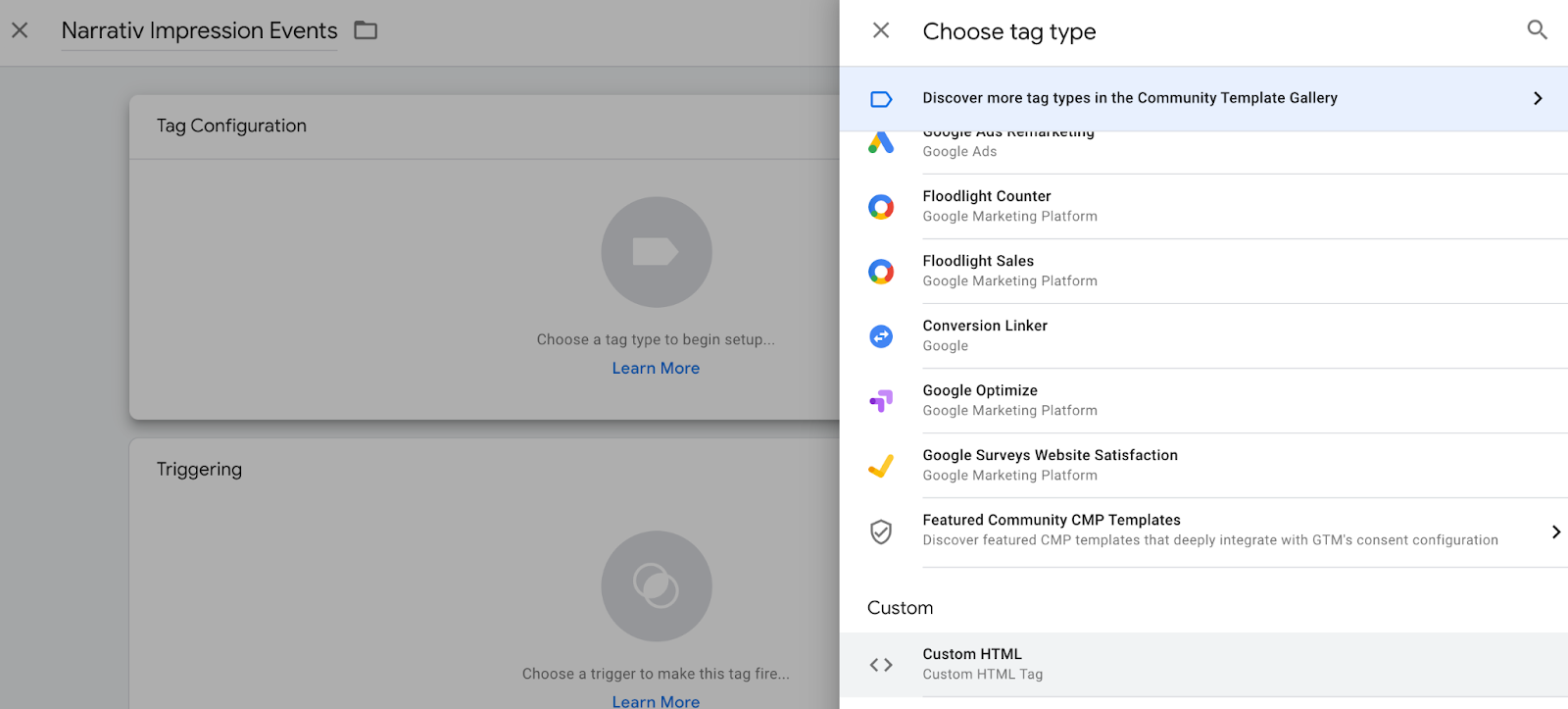
Copy and paste the following Javascript snippet in the HTML field (pictured below the snippet).
- Make sure to replace
ACCOUNT IDwith your own Howl account id. - Need your Howl account id? Reach out to your growth manager or [email protected] for assistance.
<script type="text/javascript">
    (function (window, document, accountId) {
            var b = document.createElement("script");
            b.type = "text/javascript";
            b.src = "https://public.howl-media.com/pixel/brand.js";
            b.async = true;
            b.id = 'nrtvTag';
            b.setAttribute('data-narrativ-id', accountId);
            var a = document.getElementsByTagName("script")[0];
            a.parentNode.insertBefore(b, a);
        })(window, document, ACCOUNT ID);
</script>
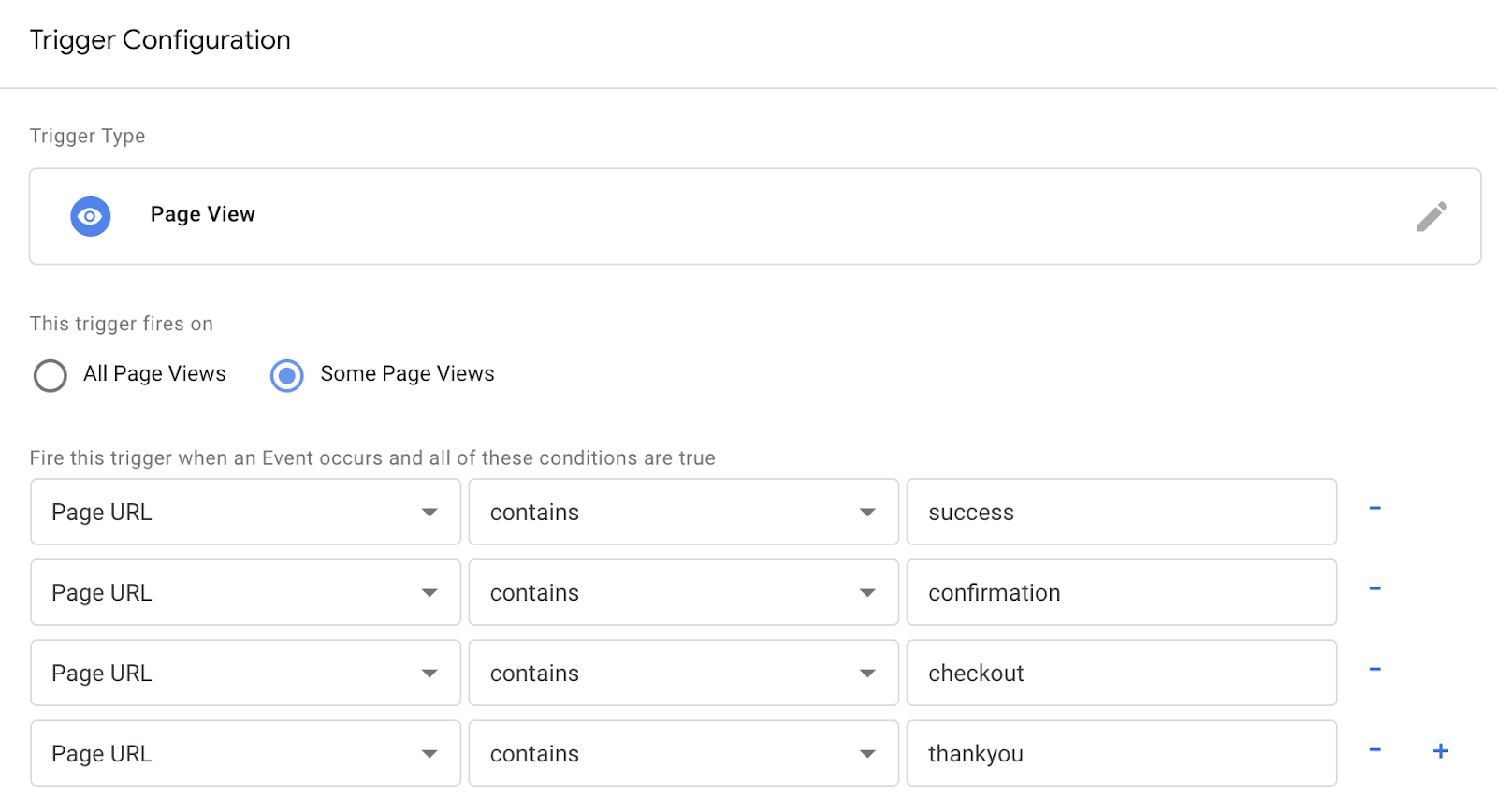
Select "All Pages" as the correct trigger for these events, with an exception added for the "Checkout Page", and save your changes.
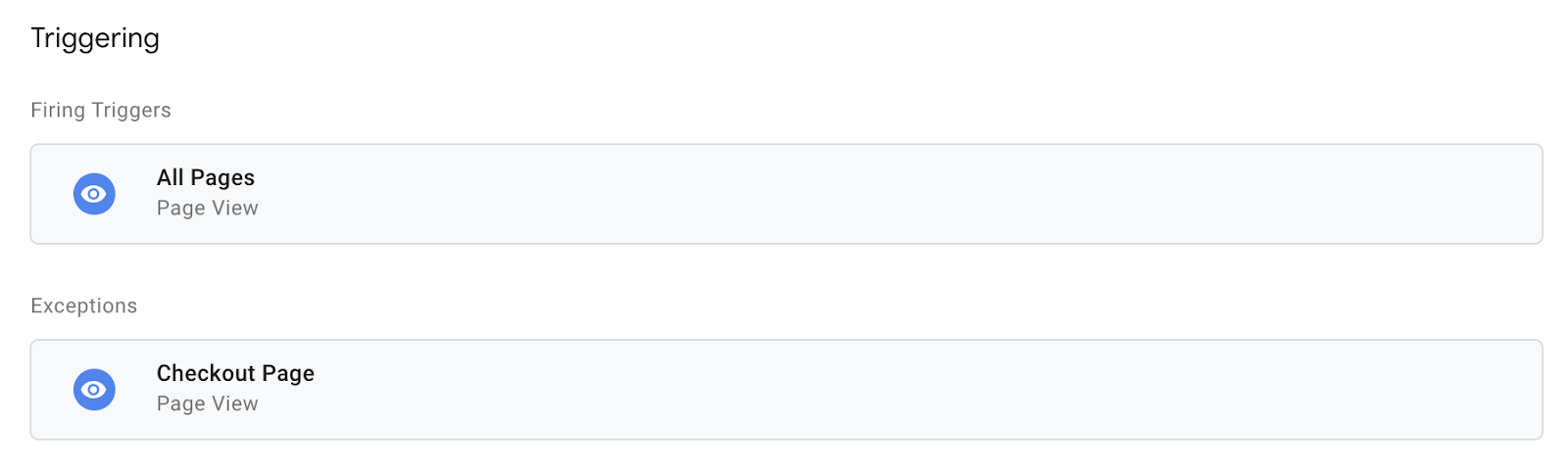
If you don't already have a trigger for checkout pages, create a new trigger with the settings that pertain to your site (potential options pictured below).
Create a second tag with a Custom HTML configuration titled Howl
Checkout Tag. Copy and paste the following Javascript snippet in the
HTML field (pictured below the snippet). Remember to also replace
ACCOUNT ID with your own Howl account id.
var purchasedshould be set to the data layer variable corresponding to products purchased at checkout. This can be defined independent of GTM variables (see previous screenshot), or it can be found in the Variables section of your Tag Manager dashboard. GTM variables referenced in the checkout tag should be wrapped in doubly curly brackets.
<script type="text/javascript">
    var purchased = dataLayer[0].ecommerce.purchase.products;
    var productsPurchased = [];
    var orderTotal = 0;
    for (var i = 0; i < purchased.length; i++) {
        let finalPrice = parseFloat(purchased[i].price);

        // Only do this if the product price does not include the discount.
        if (purchased[i].discount) {
            finalPrice -= parseFloat(purchased[i].discount)
        }

        productsPurchased.push({
            product_id: purchased[i].product_id,
            product_name: purchased[i].name,
            product_brand: purchased[i].brand,
            product_price: finalPrice.toString(),
            product_quantity: purchased[i].quantity
        });
        orderTotal += (finalPrice * purchased[i].quantity);
    }

    window.NRTV_EVENT_DATA = {
            page_type: 'checkout',
            // isNewCustomer should be a "Variable" set up in your GTM Workspace.
            is_new_customer: \{\{ IsNewCustomer \}\},
            products_purchased: productsPurchased,
            order_id: dataLayer[0].ecommerce.purchase.order.id,
            order_value: orderTotal,
            currency: dataLayer[0].ecommerce.currency_code
    };

    (function (window, document, accountId) {
        var b = document.createElement("script");
        b.type = "text/javascript";
        b.src = "https://public.howl-media.com/pixel/brand.js";
        b.async = true;
        b.id = 'nrtvTag';
        b.setAttribute('data-narrativ-id', accountId);
        var a = document.getElementsByTagName("script")[0];
        a.parentNode.insertBefore(b, a);
    })(window, document, ACCOUNT_ID);
</script>
Select "Checkout Page" as the correct trigger for these events and save your changes. Publish both the Impression & Checkout tags to your live environment.